
FREE WEBSITE TOOL
Let visitors see the difference.
✓
No account
✓
Customizable slider
✓
Uses Carrd images
Add it to Carrd
Start here, then use the builder below. The first three steps have screenshots with the exact settings marked.
01Add your photos
Add a Container with two Image elements: Before first, After second. Select the Container and open its Settings. Enter its ID in the Container ID field below. Photos taken from the same angle work best.
See the Container ID ↗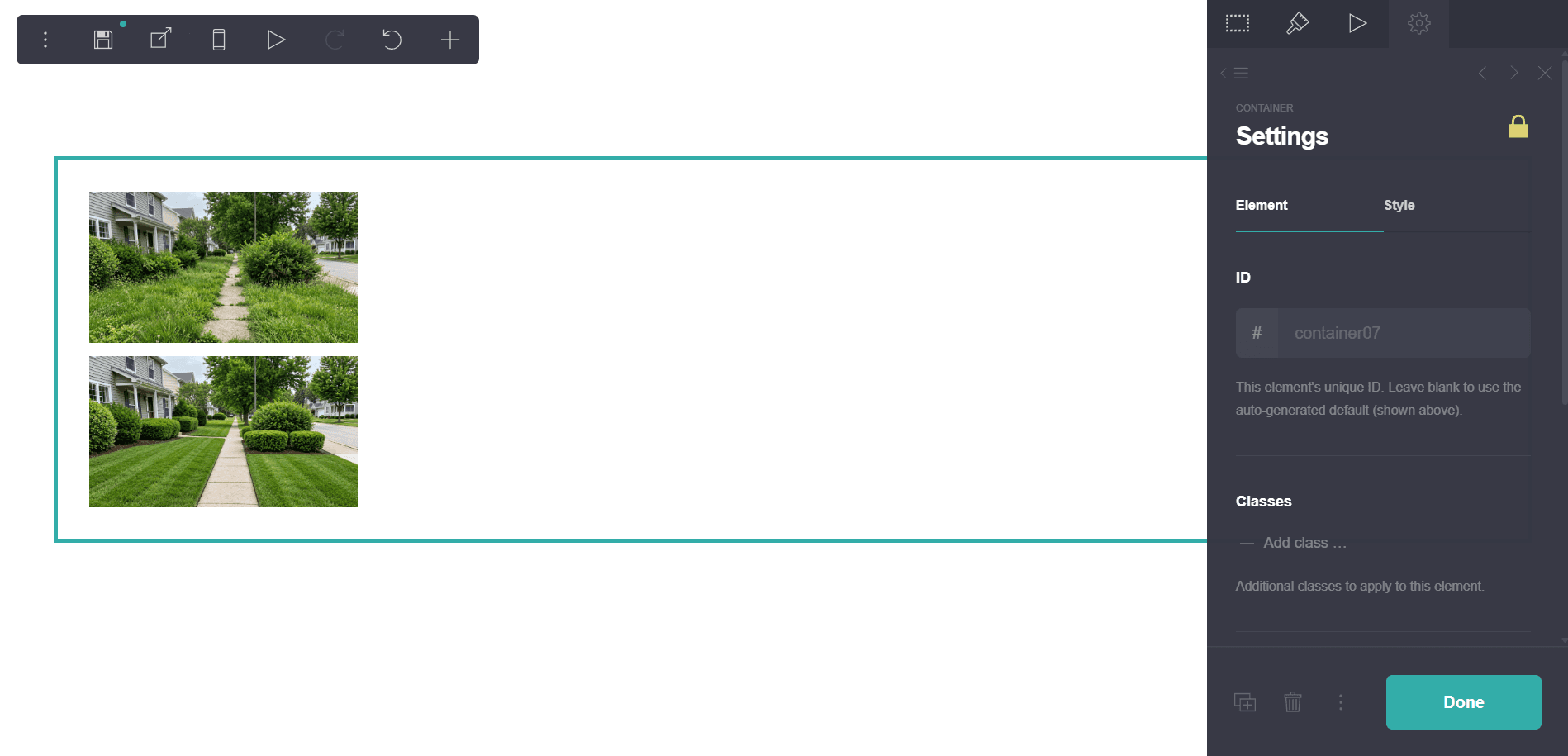
02Find both Image IDs
Open Settings for each Image and enter its ID in the matching field below. The screenshot shows an example ID — yours may be different.
See an Image ID ↗
03Place the Embed
Add an Embed where the slider should appear, outside the photo Container. Set Type to Code and Style to Inline. Customize the slider below, click Copy code, and paste it into the Embed.
See the Embed settings ↗
04Publish and test
Publish your Carrd site and drag the slider on desktop and mobile. It fills the Embed width, and its height follows the Before image’s proportions.
Important: Leave the photo Container visible in the Carrd editor. The code hides it on the published site only after both images load. If the IDs or images are wrong, the original photos remain visible.
Your images in Carrd
Images stay in CarrdImage IDs
In Carrd, put two Image elements inside one Container. Enter the IDs Carrd shows in each element’s Settings.
Enter your three Carrd IDs to generate the code.
Labels
Your ready-to-use code
One Inline Code Embed in CarrdPaste the complete block into an Inline Code Embed where you want the slider to appear. Do not put the Embed inside the image Container.