July 27, 2026 • Tutorials • 8 min read
How to Add Google Maps to Carrd
Adding Google Maps to your Carrd website gives visitors a faster way to find your business, understand its location, and open directions without searching for the address separately.
It is especially useful for local businesses, clinics, studios, restaurants, hotels, real estate projects, and other businesses that receive customers at a physical location.
The process is simple: copy the map’s embed code from Google Maps, paste it into an Embed element in Carrd, and publish the website.
i
Before you start: adding custom embed code requires Carrd Pro Standard or higher.
1
Open Google Maps on a desktop computer and search for the business, address, or location you want to display.

2
Click the Share button in the location panel. In the window that opens, select the Embed a map tab.
A standard sharing link opens Google Maps separately. The embed option displays an interactive map directly on your Carrd website.

3
Choose the map size you want to start with, then click Copy HTML.
Google Maps will copy an iframe code containing the selected location. You do not need to write the code yourself.

4
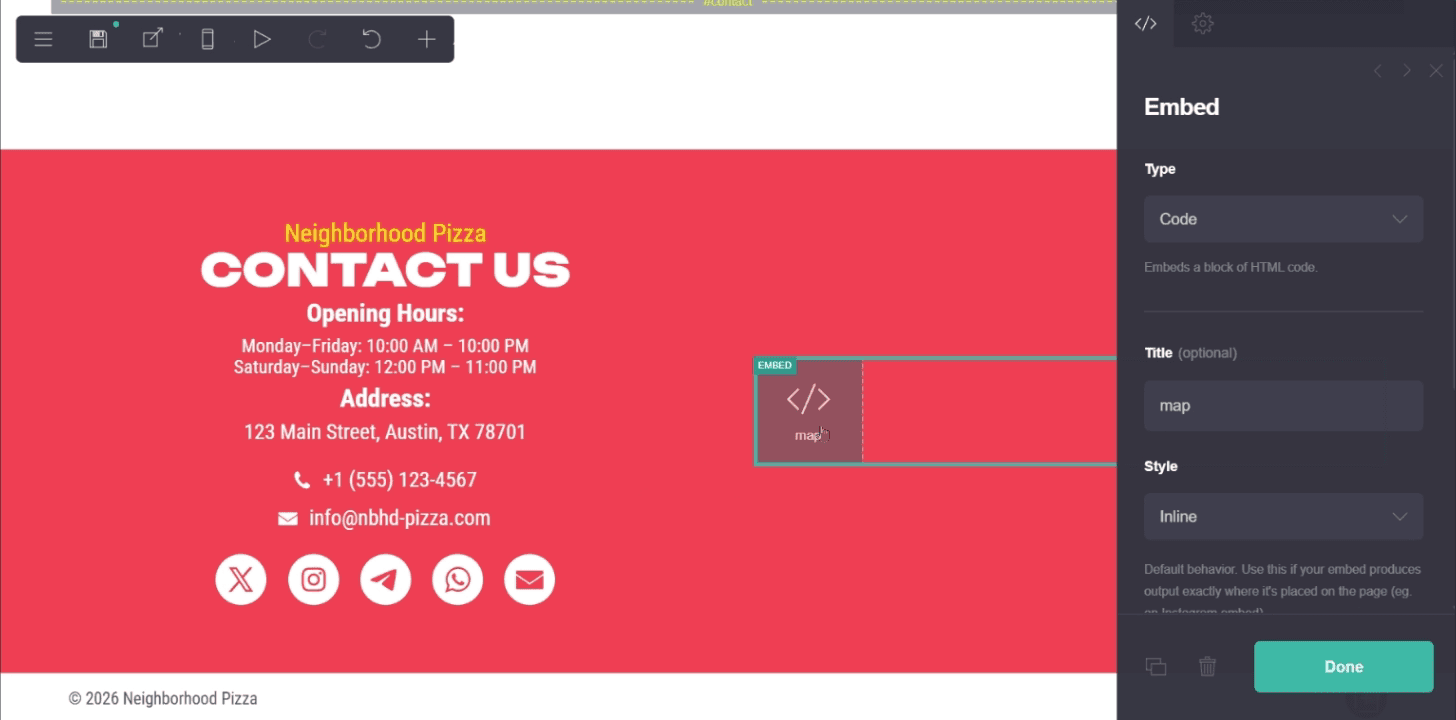
Open your website in the Carrd builder and navigate to the section where you want the map to appear.
Click Add Element, select Embed, and use these settings:
Type: Code
Style: Inline
The Inline style places the map directly inside the page layout.
5
Paste the HTML code copied from Google Maps into the Code field of the Embed element.
You can label the element “Google Map” to make it easier to identify inside the Carrd editor.
6
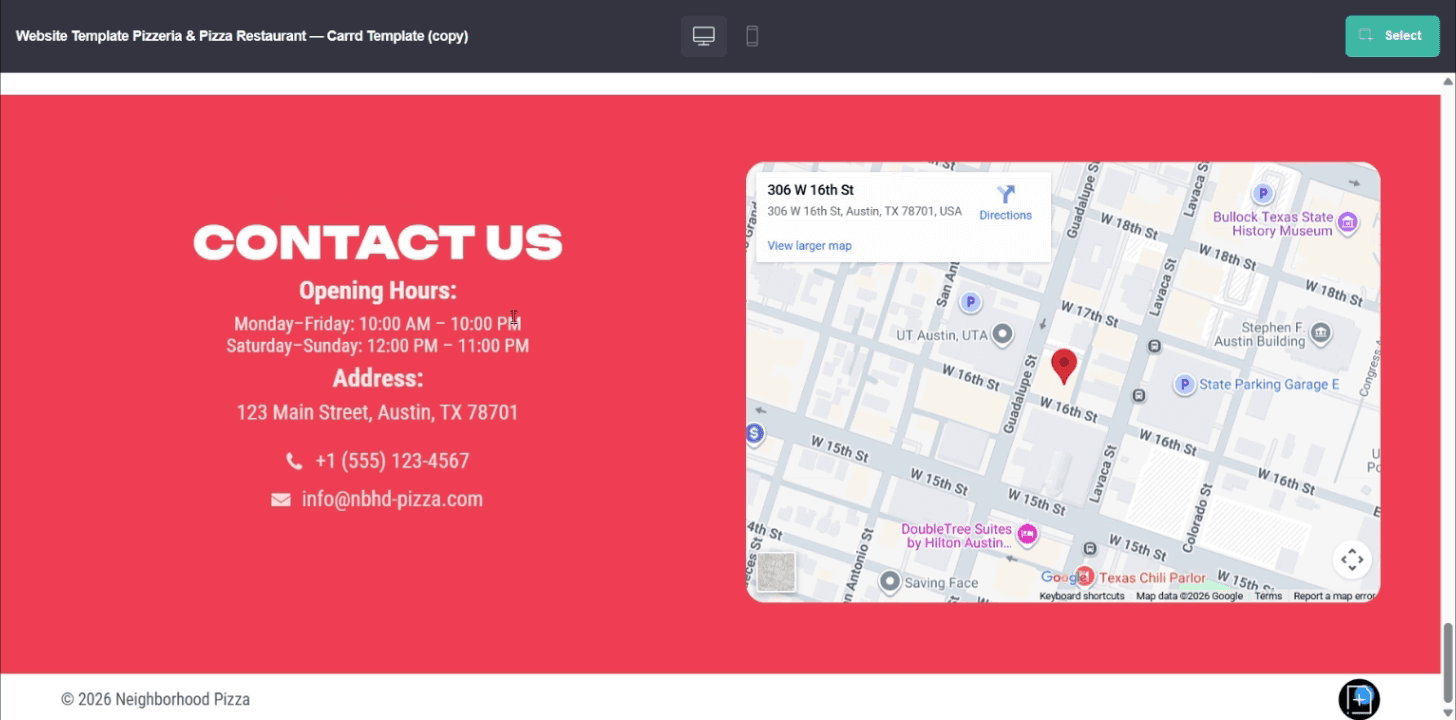
Publish your site and open the live page to confirm that the map loads correctly and displays the right location.
Check the page on both desktop and mobile to make sure the map fits the layout and remains easy to use.
The code generated by Google Maps usually contains fixed width and height values.
To make the map fill the available width inside your Carrd layout, change the iframe width to 100%.
width=”100%”
height=”450”
A height between 350 and 500 pixels works well for most business websites. The exact value depends on the surrounding layout.
Do not change the URL inside the src attribute. That URL determines which location Google Maps displays.
For most business websites, the map works best near the contact section, where visitors can also find the address, opening hours, and primary call to action.
It can be placed beside:
the business address;
opening hours;
contact information;
an appointment or booking button;
a directions button;
the final call to action.
The map should support the customer journey rather than interrupt it. For most Carrd business websites, placing it near the end of the page is the strongest option.
The map does not appear in the Carrd builder
Publish the website and check the live version. Custom Embed content may not be rendered directly inside the Carrd editor.
The page displays code instead of a map
Make sure the iframe code was added to an Embed element with Type set to Code. Do not paste it into a normal Text element.
The map is not responsive
Set the iframe width to 100% and check the published page on mobile.
The Embed element is unavailable
Custom code embeds require Carrd Pro Standard or higher.
No. A Google Map is useful when the physical location affects the customer’s decision or next step.
It works particularly well for:
dental and medical clinics;
yoga and fitness studios;
restaurants and cafés;
hotels and rental properties;
offices and coworking spaces;
For remote businesses or services delivered entirely at the customer’s location, displaying a service area may be more useful than showing a specific address.
Adding Google Maps to Carrd only takes a few minutes, but it can remove an unnecessary step for local customers.
Visitors can see where the business is located and open directions directly from the website instead of searching for the address separately.
The map should not be added simply as decoration. Place it where it supports a clear action: visiting the business, booking an appointment, attending an event, or requesting directions.